Kaspersky Internet Security is known as a powerful antimalware solution that has evolved into a more user-friendly security application. This tutorial explains how to improve the protection and security settings in Kaspersky Internet Security 2026.
1. Enable Block dangerous websites
When enabled, Web Anti-Virus blocks suspicious and phishing websites detected by Kaspersky URL Advisor. If a website’s safety cannot be confirmed, Kaspersky may suggest opening it in Safe Run mode, where harmful content cannot damage your computer. Web Anti-Virus supports secure browsing in Microsoft Edge, Mozilla Firefox, and Google Chrome.
If the option is disabled, Web Anti-Virus will not automatically block access to known suspicious or phishing websites.
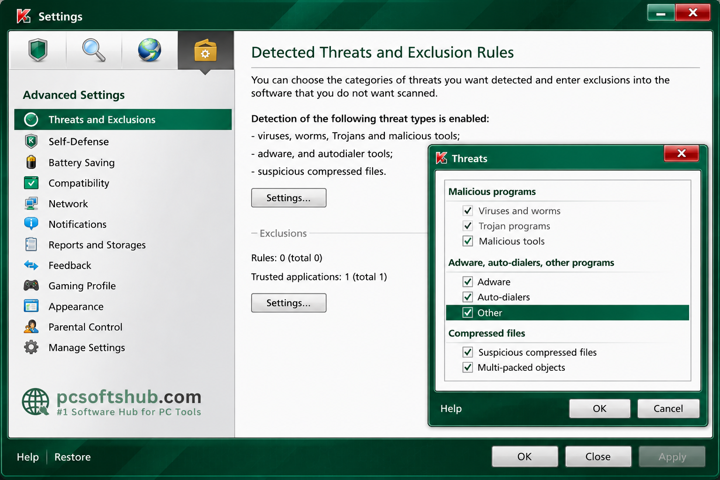
2. Enable detection of other malicious programs in Kaspersky Internet Security 2026
Kaspersky Internet Security has evolved into a more user-friendly security solution while still offering powerful antimalware protection. This tutorial explains how to improve the security and protection features of Kaspersky Internet Security 2026.
Kaspersky Internet Security 2026 can detect hundreds of thousands of malware threats on your computer. Some threats are highly dangerous, while others become harmful only under specific conditions. This tutorial helps you enable detection for all threat types to improve overall system protection.
3. Enable ‘Concede resources to other applications’
Running virus scans in Kaspersky Internet Security may increase CPU and disk usage, which can affect system performance. To maintain smooth performance, the program can automatically pause scan tasks and release resources for other applications.
4.Enable ‘Geo Filter.’
Kaspersky Internet Security 2026 includes Geo Filter technology in Web Anti-Virus, which blocks access to websites from regional domains known for high infection risks and malicious activity.
A domain is considered blocked if access is restricted by Web Anti-Virus settings or if the user has manually blocked it. When Geo Filter detects access to a website from a blocked region, Kaspersky displays a warning message.
5.Enable ‘Online Banking’ (Optional)
Web Anti-Virus in Kaspersky Internet Security provides extra protection for online banking by opening banking websites in a secure browser. Users can also manually add banking website URLs to ensure trusted financial sites are always protected.
6. KIS and Application Control
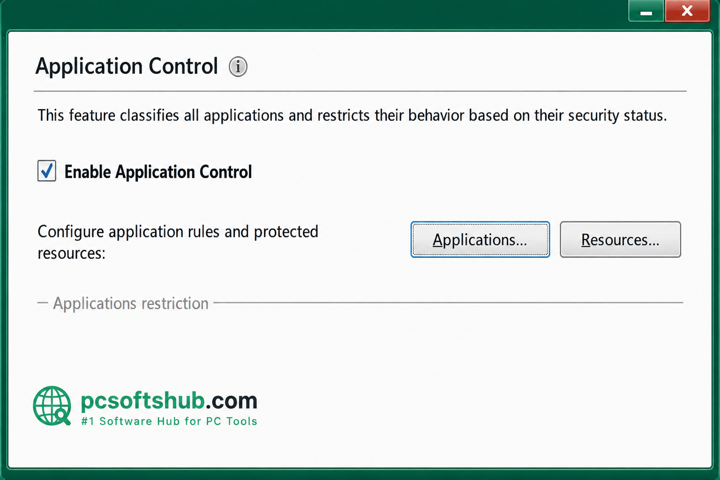
Application Control is a core security feature in Kaspersky Internet Security that helps improve protection by monitoring applications and placing suspicious programs into restricted groups. Users can configure notifications to know when an application is restricted.
How to get notified when an application is placed in Restricted Group.
Step 1:
Open Settings and go to Advanced Settings.
Step 2:
Click Notifications and select Settings.
Step 3:
Under Minor Notifications, enable Applications Placed in Restricted Group.
Step 4:
Click OK to save the changes.
These are two ways to improve Kaspersky overall protection:
A. Unknown to “Untrusted”
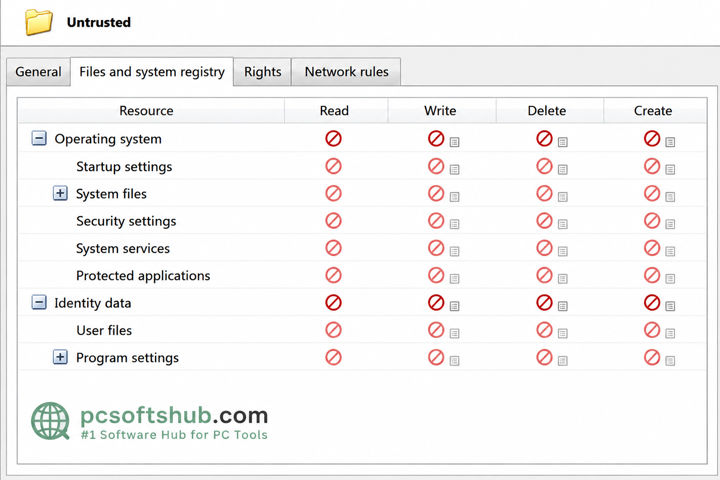
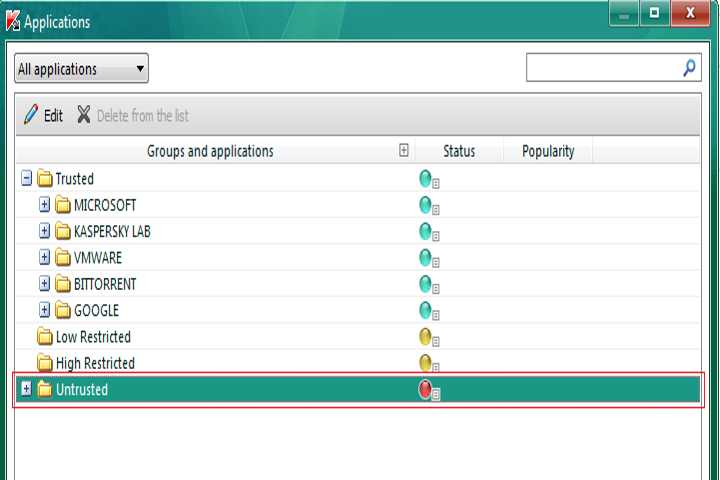
If this method is enabled, Kaspersky will place applications that are not digitally signed or included in its trusted whitelist into the “Untrusted” group. Programs in this group will have their actions blocked for stronger system protection.
Some safe applications may be placed in the “Untrusted” group if they are not digitally signed or included in Kaspersky’s whitelist. If a trusted program fails to run, users may need to manually move it out of the Untrusted group. This method provides stronger protection against zero-day threats but requires users to understand which unknown applications are safe to allow.
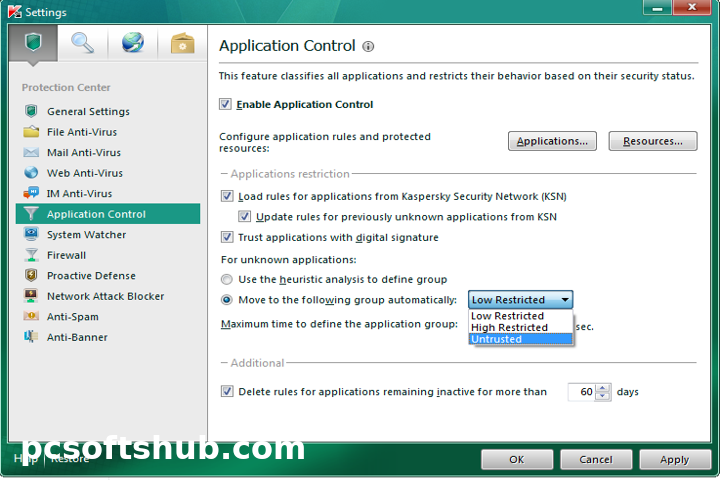
1. How to set unknown programs to “Untrusted”
Step 1:
Open Kaspersky Internet Security Settings.
Step 2:
Go to Application Control.
Step 3:
In the For Unknown Applications section, change the option from Use Heuristic Analysis to Define Group to Move to the Following Group Automatically.
Step 4:
Select Untrusted as the group.
Step 5:
Click “Apply” and “Ok”
How to move a non-malicious program from the “Untrusted” group.
Step 1:
Open Kaspersky Internet Security Settings.
Step 2:
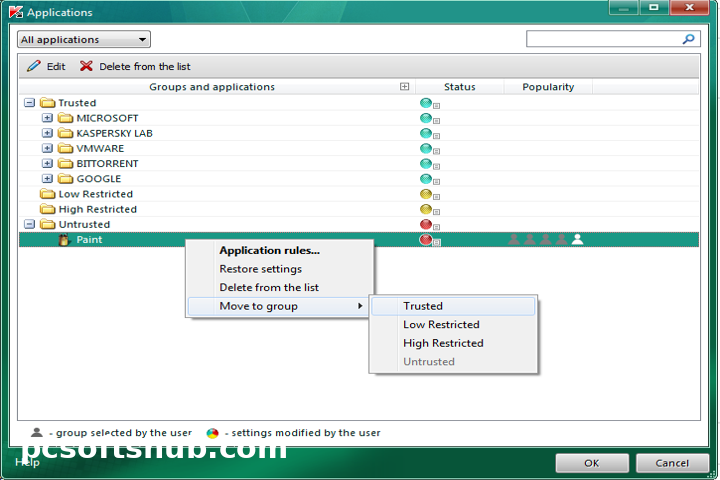
Go to Application Control and click Applications.
Step 3:
Expand the Untrusted group in the new window.
Step 4:
Right-click the safe program you want to allow.
Step 5:
Select Move to Group → Trusted.
Important:
Only move applications to the Trusted group if you are completely sure they are safe.
B.Kaspersky in Interactive Mode (Recommended for advanced users)
When Interactive Mode is enabled, Kaspersky notifies users about suspicious or dangerous activities. Although it may display more alerts, this feature provides stronger protection against unknown applications and security threats by giving users greater control over program execution.
How To Enable Kaspersky’s Interactive Mode
Step 1:
Open Settings and go to General Settings.
Step 2:
In the Interactive Protection section, uncheck Select Action Automatically.
Step 3:
Click Apply and then OK.
Full Scan Settings
Scope
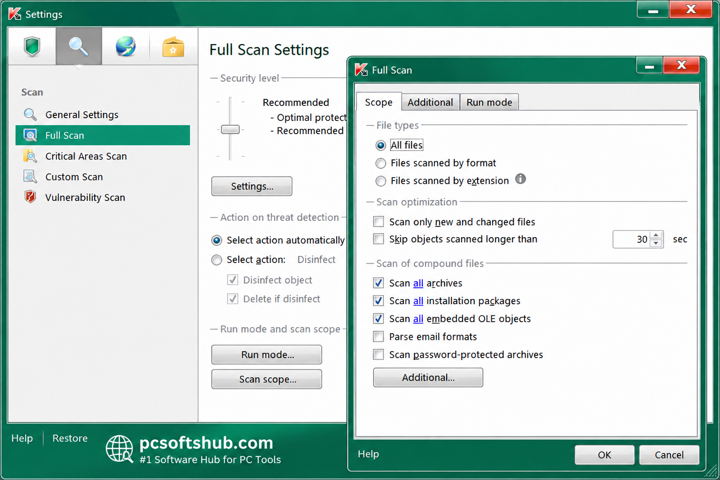
Set scan scope to All Files and enable Scan Only New and Changed Files.
Additional Settings
Enable Heuristic Analysis → Deep Scan and Rootkit Scan → Detailed/Deep Scan.
Scan Objects
Add Disk Boot Sectors to the scan scope.
Quick Scan Settings
Scope
Enable:
Scan All Files
Scan All Installation Packages
Scan All Embedded OLE Objects
Additional
Enable Deep Heuristic Analysis and Detailed Rootkit Scan.
Scan Objects
Add System Backup Storage if not already included.